
HudsonPanel handles a server move in six stages: connect the source, transfer the selected accounts, audit the result, run a final sweep, verify the destination, and change DNS when you are ready.
Supported control panels
AdminPanel can discover and transfer multiple accounts from the most common hosting control panels.
 HudsonPanel
 cPanel
 DirectAdmin
 Plesk
Before connecting
- Update HudsonPanel first. Use a current production release on the destination server.
- Check destination capacity. Leave room for website files, databases, mail, transfer packages, and operating headroom.
- Keep a separate source backup. A migration is not a replacement for a verified backup.
- Confirm root SSH access. Have the source hostname or IP, SSH port, and a fresh root password ready.
- Reduce avoidable changes. Schedule the final sweep for a quieter period and pause important cron jobs immediately before that sweep when possible.
- Leave DNS unchanged. Visitors and email should continue reaching the old server while you transfer and test.
1. Connect and choose accounts
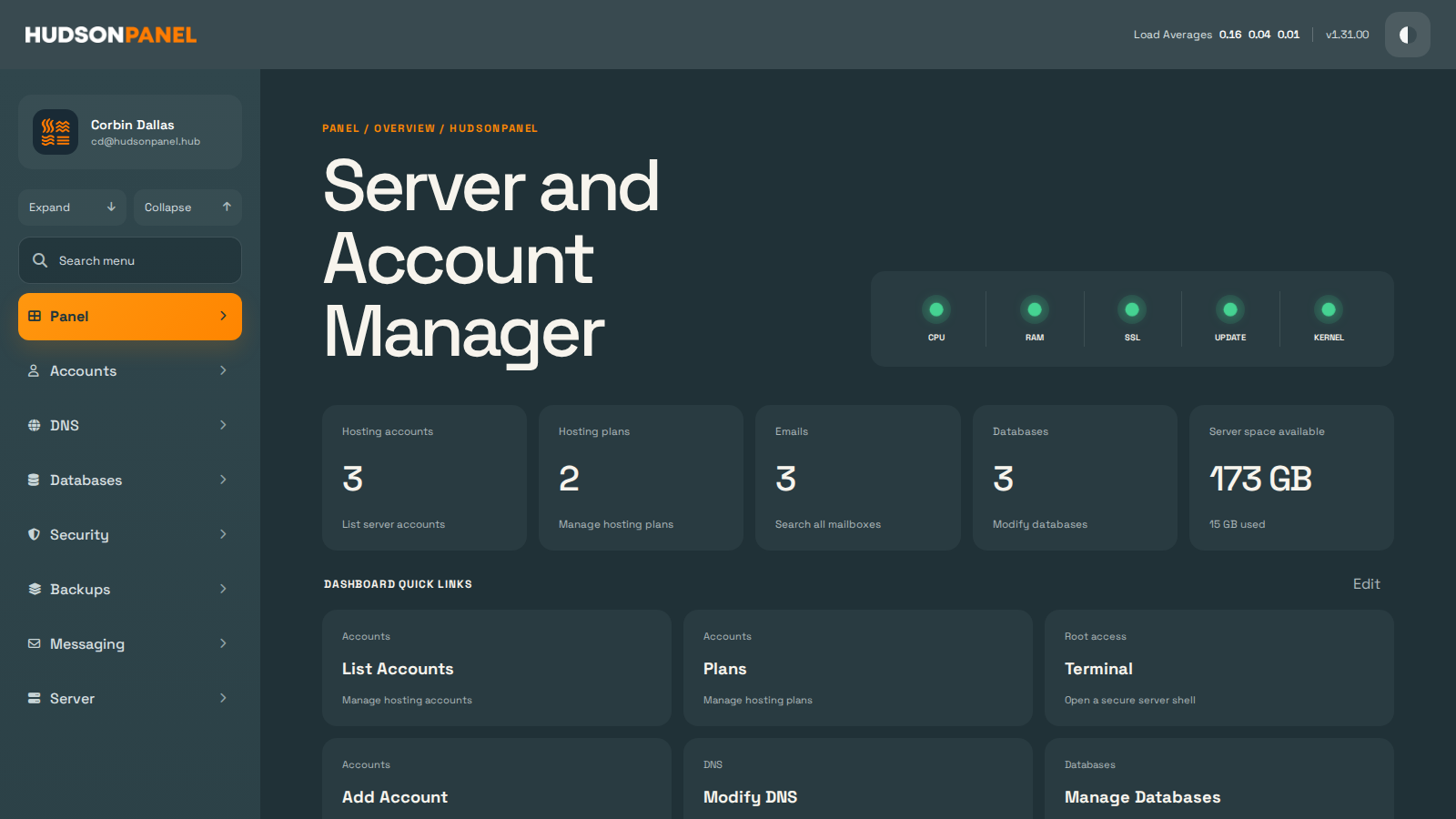
Open AdminPanel → Accounts → Migrations, choose the source control panel, and enter its SSH details. HudsonPanel connects once, identifies the accounts and source packages, and lets you choose exactly what belongs in the batch.
Previously completed domains are identified in the account list. This helps prevent an accidental repeat without taking away the option to transfer an account again.
2. Run the main transfer
HudsonPanel creates the destination account and moves account data in restart-safe phases. Large cPanel websites are divided into resumable file groups instead of one oversized archive. Files, databases, mail, aliases, redirects, and supported website settings are handled separately so one stage can be inspected or retried without hiding the rest of the job.
The transfer worker reduces concurrency when the source or destination is under sustained resource pressure. Progress reports show the current phase, transferred data, speed, remaining data, and estimated time.
3. Audit before cutover
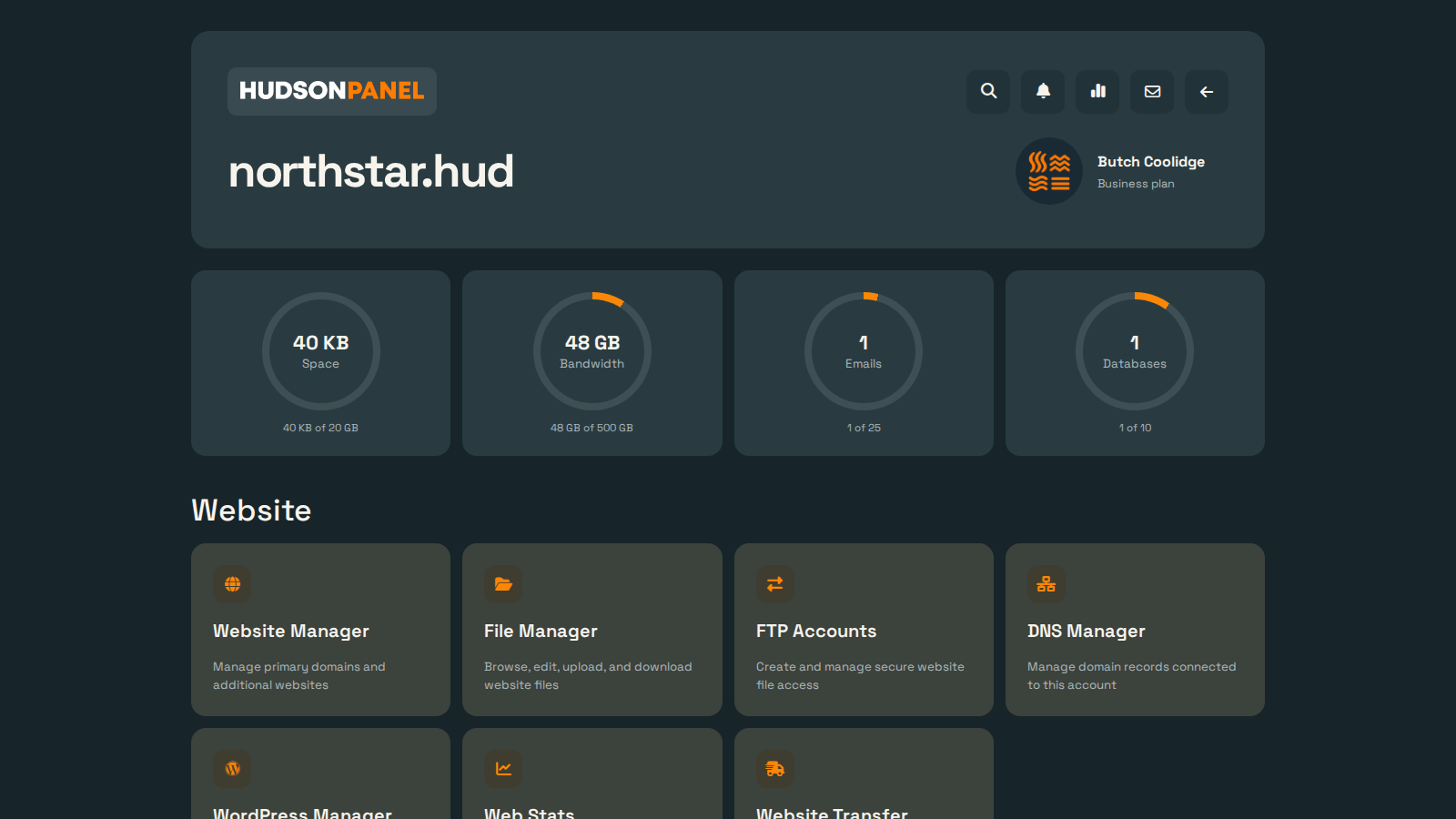
Use the protected preview URL to inspect the destination before public DNS points to it. Review the transfer report for items that need a decision rather than treating every note as a failure.
- Open important pages, forms, sign-ins, and administration routes.
- Check images, downloads, rewrites, redirects, and application error pages.
- Confirm the assigned PHP version and PHP-FPM runtime.
- Review database validation, legacy compatibility notes, and any application-aware table rebuilds.
- Check mailbox data and note any cron jobs that must be added manually.
- Record source dedicated IP assignments; transferred accounts initially use the destination server’s shared IP.
4. Run the Final Sweep
Run the Final Sweep manually after the main transfer passes review and shortly before changing DNS. It reuses the completed destination account rather than recreating it.
5. Verify the destination
Verification should be automatic and concise. HudsonPanel checks the result and shows either Ready for DNS Change or a short list of specific items to review.
- The website responds correctly through its destination preview.
- The application can connect to its database.
- The selected PHP version matches the active PHP-FPM runtime.
- Expected mailbox data is present.
- SSL and DNS readiness are reported.
- File and database totals are reasonable for the source account.
- No transfer stage remains failed.
6. Change DNS
DNS remains a deliberate administrator action. Change the website and mail records only after verification passes. If you are moving a dedicated IP, assign it to the destination account as part of the cutover plan.
- Pause important source cron jobs if the report identified them.
- Run and verify the Final Sweep.
- Apply the planned destination IP and DNS records.
- Issue or verify destination SSL after the names resolve correctly.
- Test the public website, forms, sign-in, mail, and scheduled tasks.
- Keep the old server online and unchanged during the rollback window.
Tips for a smoother transfer
- Start with a smaller account. Confirm the source and destination environment before moving the largest site.
- Move files before the quiet window. Large websites can transfer while the source remains live; the Final Sweep captures later changes.
- Use previews, not DNS, for testing. Preview first so the public site remains stable while you correct destination-only issues.
- Treat estimates as planning tools. Millions of small files and large database indexes can take longer than their total byte size suggests.
- Keep reports until verification is complete. Reports and preview URLs are useful during the first days after cutover.
- Do not rush the rollback window. A quiet old server is inexpensive insurance while the new server proves itself.